Picture Recovery Software

Stellar Photo Recovery Software

Picture Recovery Software

Stellar Photo Recovery

Picture Recovery software enables users to restore pictures, audio files and videos deleted or lost from hard drives, memory cards, flash drives, and other storage devices. The picture recovery software offers advanced support for multiple file systems and allows recovery of photos and videos shot with digital cameras, DSLRs, mobile phones, CCTV, dash cams etc. A major advantage this tool provides is reinstating lost media files with their original date timestamp, camera model/name, and file names, without losing their original quality.

It is a comprehensive Do-It-Yourself (DIY) application, which comes with an interactive GUI and customizable options that make working with it extremely simple even for non-technical users.


Buy Now
Software Highlights
Stellar Photo Recovery is backed by an array of impressive features, which helps it perform a flawless deleted picture recovery. Here's a quick look at 3 of its most appealing features:
Easily Recovers Various Formats of Pictures and Media
Easily Recovers Various Formats of Pictures and Videos

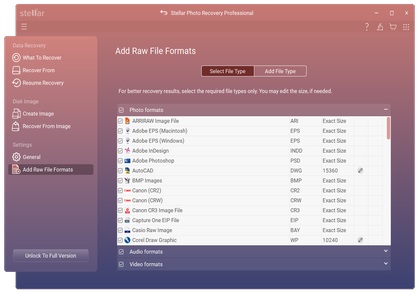
Advanced algorithms empower this software to recover deleted pictures and media of a variety of formats. Also, if you're unable to find a particular file type in the list of supported formats, you have the option to modify an existing file header or add a new one to the list of formats.

RAW Recovery on the principle of file signature recognition
Deep Scan Recovers Every Bit of Lost Data

Deep Scan allows you to recover media files from hard disk, SD cards, USB pen drive, memory cards or memory sticks. It does a comprehensive scan basis the file signature to recover every bit of lost or deleted data. This option is especially helpful in case of severely corrupt volume, drive or media.

Works smoothly with large sized storage devices

If you wish to recover deleted pictures and videos from storage devices having a large capacity, you should trust this one product. Unlike its competitors, the Stellar software facilitates deleted pictures recovery from media with size over 4TB.

Recovery Algorithm
The Picture Recovery Software works on a simple 3-step recovery process.
step 1
Scan

Picture recovery software prompts the user to select a target drive (such as a hard drive, external storage device, flash drive, or digital camera) on which the scan should be conducted. Once the drive is selected, searching algorithms enable the software to look for recoverable pictures and media on the drive. As items are recovered, they're populated as File Type, Tree View, and Deleted List on the left side panel of the software window.

step 2
Preview

This premium product gives you more benefits than any other free picture recovery software. It lets you preview each item before performing the actual recovery so that you can be assured whether recovery is possible for the files you wish to restore or not. Once the scanning of the target drive completes, you can select any item from the found files list and preview it before saving.

step 2
Recover

Once you're satisfied with the preview, select the images, media, or folders that you wish to recover. Select a desired location to save the files and initiate the recovery. The software facilitates recovery from various camera, all brands/sizes/types of memory cards, SD cards, hard drives or any type of removable storage media like USB flash drive, memory sticks, SDXC, SDHC etc. It also facilitates recovery in case data loss arises from storage media corruption, errors, malicious/virus attack etc.

Easy Recovery Process

Download, install and launch Stellar Photo Recovery. Once the main screen of the software appears, follow the below steps.

  • Launch the software and choose the file type and click Next.
  • Select the drive/volume to scan and click Scan.

    Note: Choose to customize the recovery process through Add RAW File Formats button on the left pane. Select a specific file type, add new file type or edit Header to scan for exact results.
  • Start Scan: Click the Scan button to initiate the search for lost or deleted media.

    A dialog box of 'Scanning Completed Successfully!' appears. In the left-pane of main window, all the found files and folders are listed. The bottom-right pane lists the files stored in the selected folder. Select a file and preview in the right pane.
  • Preview and Organize: In the left pane, your data is now organized by File Type, Tree View, or Deleted List. Click on a folder to view its contents in the bottom-right pane. Select any file to see a high-quality Preview in the main viewing area.

    Note: If you do not see your required photos, videos, or audio files, click the Deep Scan option at the bottom for a more thorough search of the drive sectors.
  • Select and Recover: Check the boxes next to the specific media files you want to retrieve and click Recover.
  • Destination Selection: In the pop-up dialog box, click Browse to specify a secure location to save your recovered files.
  • Save: Click Start Saving to finalize the process.
recover


Create Image
Create Image

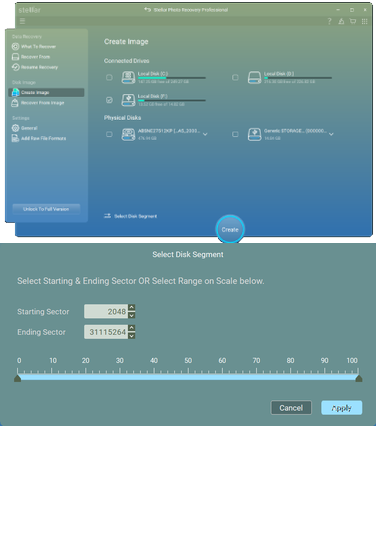
To safeguard your data against drives with hardware issues, you can create a disk image to recover files at a later time without further stressing the physical media.

Note: The Create Image feature is exclusively available in the Professional and Premium editions of Stellar Photo Recovery v12.

Steps to Create a Drive Image:

  1. On the main interface, select the Create Image option from the left pane.
  2. Select the drive/volume to create the image.

    Note: You can manually select the Disk Segment from start to end.
  3. The software will then ask you to save the image to a particular location.
  4. Click Start Imaging.

Once the image is created, you can safely disconnect the failing drive. To retrieve your photos, videos, and audio files from the saved drive image, simply click Resume Recovery and select the saved image file to perform a scan.


Resume Recovery

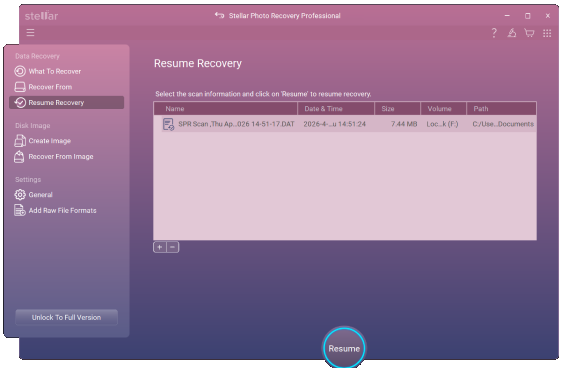
Once you start scanning the drive, you can pause & stop your progress at any time by saving the scan information or creating a drive image. This allows you to reload the data later and pick up exactly where you left off without rescanning the entire drive. Follow these steps to resume:

  • Select Resume Scan: Click Resume Scan from the left pane. A Resume Recovery window opens, listing all saved scan information and image files.
  • Add Scan File: Select the scan information file you wish to resume. If the file is not in the list, click Add to browse and select it manually.
  • Start Recovery: Click Resume Recovery to reload the scan results.

    Note: Once the scanning starts, a screen will appear displaying the scan results.
  • Specify Destination: Preview and select the media files you wish to restore and specify the location where you want to save them.
  • Save: Click Start Saving to complete the process.
Resume Recovery
Buy Now
Supported Devices
Stellar Picture Recovery tool works smoothly with a number of storage devices.
Easily Recovers Various Formats of Pictures and Media
Hard drives
RAW Recovery on the principle of file signature recognition
Memory cards/SD cards
Works smoothly with large sized storage devices
Digital Cameras
Works smoothly with large sized storage devices
USB drives/Removable storage devices

Supported Cameras

Here is a list of major supported cameras:

sony

nikon

canon

samsung

kodak

fujifilm

pentax

panasonic

mamiya

olympus

epson

sigma


Supported Memory Cards

Here is a list of major supported memory cards:

sony

nikon

canon

samsung

kingston

transcend

lexar

panasonic

Supported File Formats
The tool proficiently restores deleted pictures and media of the following formats:
Image Formats
Image Formats

BMP, JPEG, GIF, TIFF, MOS, MEF, PSP, DJVU, TGA, PGM, DNG, PNG, PSD, INDD, JP2, PCT, PSP, PCT, and Adobe EPS (Windows), etc.

Audio Formats
Audio Formats

ACD, AIFF, AMR, AT3, AU, CAFF, DSS, IFF, M4A, M4P, MIDI, MP3, NRA, OGG, RA, RM, RPS,SND, WAV, and WMA, etc.

Video Formats
Video Formats

3G2, 3GP, AJP, ASX, MTS, AVI, DIVX, F4V, HDMOV, M4R, MKV, MOI Video File, MP4, MPEG, MQV, OGM, SVI, TOD, VID, VOB, and MXF movies, etc.

Buy Now

Product Specifications

OS: Windows 11, 10, 8.1, 8 and Windows Server 2022, 2019, 2016
Mac: macOS Tahoe 26, Sequoia 15, Sonoma 14, Ventura, Monterey, Big Sur, Catalina 10.15, 10.14 & 10.13
License: Single System
Version: 12.6.0.0
Language: English, Deutsch, French, Dutch, Italiano, Español, 日本語 , 한국어, Português Brasileiro, हिंदी, 中国人

What Our Customer Says

Why Choose Stellar?
Easy to Use

EASY TO USE

Future Ready

FUTURE READY

24X5 Supports

24X5 SUPPORT

Money Back

MONEY BACK

Most Awarded

MOST AWARDED

Reliable & Secure

RELIABLE & SECURE